Git for Beginners: A Simple, No-Stress Guide
If you’re learning development, sooner or later you’ll hear everyone say:
“You should know Git.”
At first, Git feels scary. Commands, terms, weird errors — it almost feels like one wrong step and everything will break.
But honestly? Git is just a tool to save your work properly.
Let’s break it down in a calm, simple way.
What is Git?
Git is a tool that helps you keep track of changes in your code.
That’s it.
Imagine working on a project and thinking:
“This was working yesterday…”
“I should’ve kept a backup…”
“What did I change that broke everything?”
Git solves all of that.
It keeps a history of your code so you can:
Save progress
Go back to older versions
Experiment without fear
Think of Git as a smart notebook that remembers every important change you make.
Why Do Developers Use Git?
Because coding without Git feels risky
Here’s why Git is used everywhere:
🔹 It Saves You From Yourself
You will break your code at some point. Git lets you roll back.
🔹 It Keeps Work Organized
No more folders like:
project_final
project_final2
project_final_really
🔹 It Helps You Learn Faster
You can try new ideas without worrying about ruining your project.
🔹 It’s an Industry Standard
Almost every company expects basic Git knowledge.
Important Git Terms (Explained Simply)
Before commands, let’s understand the words Git uses.
Repository (Repo)
A repository is just your project folder — but with Git tracking enabled.
When you run git init, Git creates a hidden .git folder that stores all history.
Commit
A commit is a saved checkpoint.
Think:
“Okay, this part is done. Let me save it.”
Each commit has a message so you remember why you saved it.
Branch
A branch is like a separate path for your code.
You can:
Keep
mainbranch stableTry new features on another branch
Merge later when ready
HEAD
HEAD simply tells Git where you are right now.
It usually points to the latest commit you’re working on.
How Git Actually Works (Behind the Scenes)
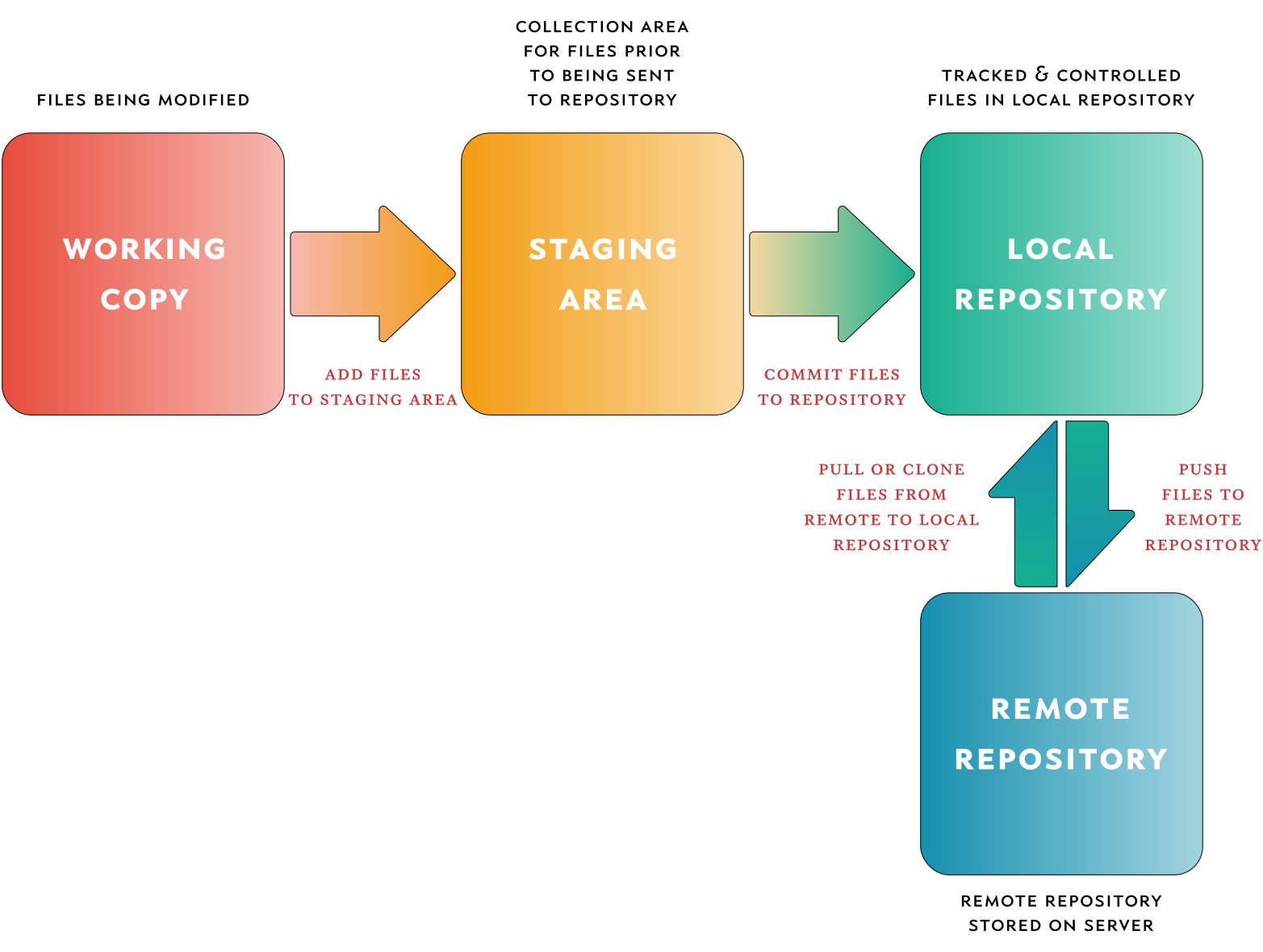
Git follows a very simple flow:
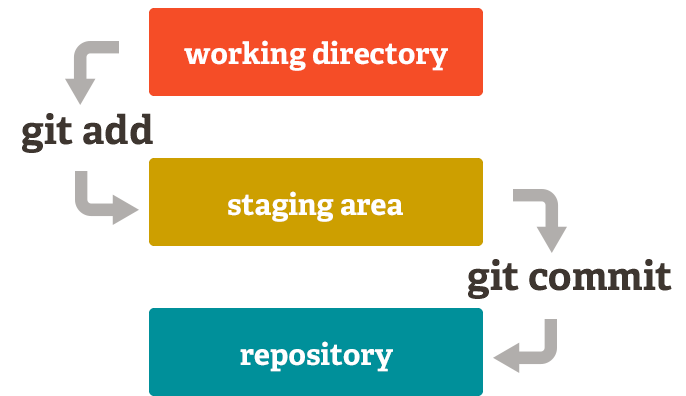
Working Directory – where you write code
Staging Area – where you choose what to save
Repository – where Git stores saved versions
You don’t directly commit files.
You stage them first, then commit.
This gives you control.
Common Git Commands (The Ones You Actually Need)
git init
Starts Git tracking in your project.
git init
You usually run this only once.
git status
Shows what’s going on in your project.
git status
This is the safest command — you can run it anytime.
git add
Tells Git which changes you want to save.
git add .
This means: “Add everything I changed.”
git commit
Saves your work permanently.
git commit -m "Added login page"
A good commit message explains what you did, not how.
git log
Shows your project’s history.
git log
You’ll see how your project evolved step by step.
A Simple Git Workflow (Real Life Example)
Here’s how Git fits into daily coding:
Create a project
Run
git initWrite some code
Check changes using
git statusStage them with
git addSave them using
git commitRepeat
That’s it. No magic.
Final Thoughts
Git is not about memorizing commands.
It’s about feeling safe while coding.
If you remember just this:
Write code
Stage changes
Commit often
You’re already ahead of many beginners.
Git feels confusing only at the start — once it clicks, it becomes second nature.


